Refurbished MacBook Pro 2017 13-inch models are listed here. Compare processor speeds, SSD storage sizes, memory, Thunderbolt 3 ports (USB-C) and more.

Refurbished MacBook Pro 2017 13-inch models are listed here. Compare processor speeds, SSD storage sizes, memory, Thunderbolt 3 ports (USB-C) and more.
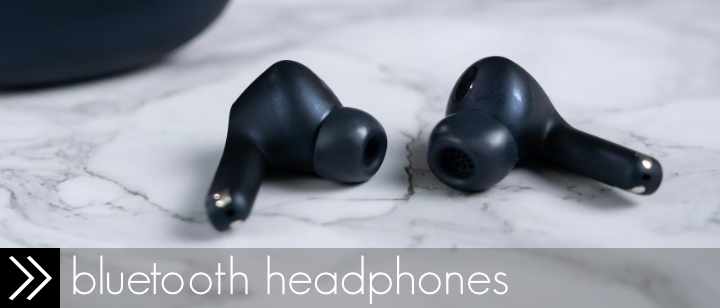
The 15 bluetooth headphones with long battery life listed here can all playback wireless audio for at least 10 hours, and are all water resistant.
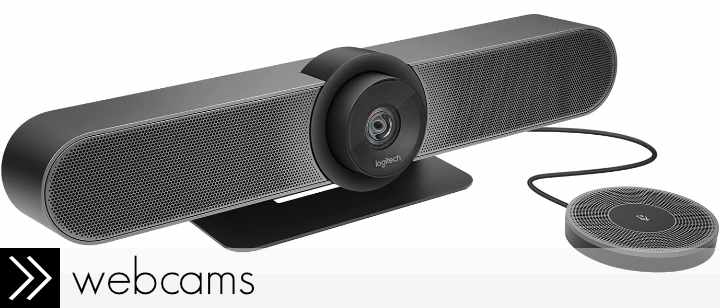
For the 8 all-in-one video conference webcams on this list, compare the recommended group size, field-of-view, microphone pickup range, speakerphone details, pan/tilt/zoom controls, and more.
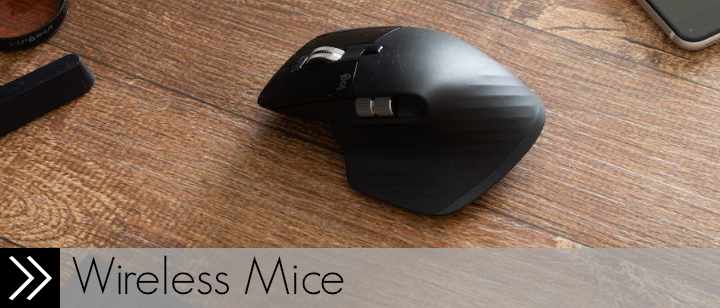
The wireless silent mice listed here all feature quiet or noiseless clicks, while some also have extra buttons, added security and power saving functions.
In Windows 10, it may happen at some point, that you can’t set the default browser correctly (Chrome, Firefox, etc). Here is one possible solution to get your system to remember your default browser choice, if you are having this problem.
If your WordPress category page links stop working, it may be due to the WordPress SEO plugin’s “strip the category base” feature. Here’s a workaround.
After upgrading to Windows 10, you may be missing the “Hibernate” option in the power button of your Windows 10 Start Menu. These simple steps will show you how to add the “Hibernate” option back to your Windows 10 Start Menu power button.
In Windows 10, there seems to be a known Windows Start Menu issue, where the Windows 10 Start Menu just stops working. Here is a possible solution to this Windows 10 Start Menu problem.
For WordPress users, the error message “Something has gotten mixed up!” may appear while logged into your WordPress site admin area. This is caused by the Jetpack plugin and can be quickly fixed with the instructions here.
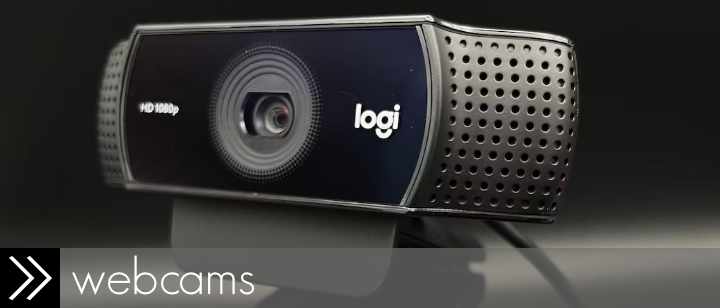
For the 10 wide-angle HD webcams on this list, compare the field of view and Skype HD video call quality (1080p/720p). Also, see their pros, cons, details.
| Cookie | Duration | Description |
|---|---|---|
| cookielawinfo-checkbox-analytics | 11 months | This cookie is set by GDPR Cookie Consent plugin. The cookie is used to store the user consent for the cookies in the category "Analytics". |
| cookielawinfo-checkbox-functional | 11 months | The cookie is set by GDPR cookie consent to record the user consent for the cookies in the category "Functional". |
| cookielawinfo-checkbox-necessary | 11 months | This cookie is set by GDPR Cookie Consent plugin. The cookies is used to store the user consent for the cookies in the category "Necessary". |
| cookielawinfo-checkbox-others | 11 months | This cookie is set by GDPR Cookie Consent plugin. The cookie is used to store the user consent for the cookies in the category "Other. |
| cookielawinfo-checkbox-performance | 11 months | This cookie is set by GDPR Cookie Consent plugin. The cookie is used to store the user consent for the cookies in the category "Performance". |
| viewed_cookie_policy | 11 months | The cookie is set by the GDPR Cookie Consent plugin and is used to store whether or not user has consented to the use of cookies. It does not store any personal data. |